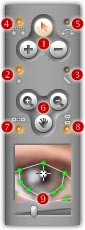
We have just used the Add Dot tool; the other tools are also useful for advanced editing.
Edit Tools
There are 3 edit tools ( )
on the toolbar.
)
on the toolbar.
Edit Dots ( ):
Rectangle marquee to select a group of dots, then you can move, scale, cut,
delete, copy or paste it by using mouse or choosing a corresponding Edit
submenu.
):
Rectangle marquee to select a group of dots, then you can move, scale, cut,
delete, copy or paste it by using mouse or choosing a corresponding Edit
submenu.
Add Dot ( ): As
described in Lesson 3, you can use this tool to add a
key dot and move it to a correct location. It's the most used tool.
): As
described in Lesson 3, you can use this tool to add a
key dot and move it to a correct location. It's the most used tool.
Delete Dot ( ): You
can use this tool to delete any useless dot. Just move the cursor on the dot and
click.
): You
can use this tool to delete any useless dot. Just move the cursor on the dot and
click.
Remarks
• Beginning with version 3.0, you can delete a dot under the cursor at any time by simply right-clicking without having to choose the Delete Dot tool.
Edit Options
There are 2 options for dot adding.
Auto Add Corresponding Dot ( ): If
this option is checked, for each click on either image, a corresponding dot will
appear automatically on the opposite image. If this option is unchecked, you can
add key dots on each source image separately.
): If
this option is checked, for each click on either image, a corresponding dot will
appear automatically on the opposite image. If this option is unchecked, you can
add key dots on each source image separately.
Auto Jump to Corresponding Dot ( ):
If this option is checked, when you added a dot on an image, the mouse cursor
will automatically jump to corresponding position on the opposite image.
):
If this option is checked, when you added a dot on an image, the mouse cursor
will automatically jump to corresponding position on the opposite image.
Remarks
• You can combine the two options to get your own favorite dot adding mode. For example, if Auto Add Corresponding Dot is off but Auto Jump to Corresponding Dot is on, you will get the fastest dot adding mode.
View Tools
There are 3 view tools ( )
on the toolbar.
)
on the toolbar.
Adjust Viewport ( ): When
a viewport can't hold an image wholly, a horizontal or a vertical scroll bar
will appear. You can drag the viewport by mouse or use the scroll bars to show a
needed part of the image.
): When
a viewport can't hold an image wholly, a horizontal or a vertical scroll bar
will appear. You can drag the viewport by mouse or use the scroll bars to show a
needed part of the image.
Zoom In ( ),
Zoom Out (
),
Zoom Out ( ): Choose
these tools and click anywhere of the source images or preview, the viewport can
be smoothly scaled from 12.5% to 800%.
): Choose
these tools and click anywhere of the source images or preview, the viewport can
be smoothly scaled from 12.5% to 800%.
Remarks
• Beginning with version 3.0, you can use these tools not only on the source images, but also on the preview.
• Beginning with version 3.0, you can adjust viewport at any time by mouse wheel scrolling without having to choose these view tools, and the viewport can be smoothly scaled up to 1600% by mouse wheel scrolling.
• Beginning with version 3.1, you can zoom out/zoom in/best fit viewport at any time by pressing the key ",", "." and "/" if your mouse has no wheel. These keyboard shortcuts are also useful in Frame Sequence view mode.
View Options
There are 2 options for simultaneous viewport adjusting.
Zoom/Pan Sources Simultaneously ( ):
When you zoom/pan any one of the two source images, the program will zoom/pan
the other one simultaneously.
):
When you zoom/pan any one of the two source images, the program will zoom/pan
the other one simultaneously.
Zoom/Pan Preview Simultaneously ( ):
When you zoom/pan any one of the two source images, the program will zoom/pan
the preview simultaneously, and vice versa.
):
When you zoom/pan any one of the two source images, the program will zoom/pan
the preview simultaneously, and vice versa.
Remarks
• In most cases, it is recommended to make both the options checked. In this way all windows can be located at the same position automatically.
Magnifier
The Magnifier ( )
magnifies the area under and around the mouse cursor when you are working within
the source or target image. This enable you to have good precision on delicate
operation such as adjustment without having to zoom in and out continuously.
)
magnifies the area under and around the mouse cursor when you are working within
the source or target image. This enable you to have good precision on delicate
operation such as adjustment without having to zoom in and out continuously.
You can also drag the Magnifying
Power Slider ( )
to change the magnifying power from 1x to 4x.
)
to change the magnifying power from 1x to 4x.
Accueil |
Fonctionnalités |
Copies d'écrans | Exemples
|
Télécharger
|
Acheter |
FAQ |
Tutoriels |
Forum
Copyright © 2002-2007 Abrosoft. Tous droits réservés.
Nous contacter | Confidentialité
et sécurité