 )
to create a new directory, choose the Delete Directory button (
)
to create a new directory, choose the Delete Directory button ( )
to delete a directory (must empty), or choose the Rename Directory button
(
)
to delete a directory (must empty), or choose the Rename Directory button
( )
to rename a directory.
)
to rename a directory.After the previous editing process, we get a series of faces with key dots. If you want to reuse a face in other projects, you can store it to the Face Library. You can also directly add stored faces to this project without any new editing work.
1. To manage the Face Library, you can choose the Add
Directory button ()
to create a new directory, choose the Delete Directory button ()
to delete a directory (must empty), or choose the Rename Directory button
()
to rename a directory.
2. You can directly drag a face from Face List Panel to a
directory of Face Library or click the Store Face to Library button ( )
to store it.
)
to store it.
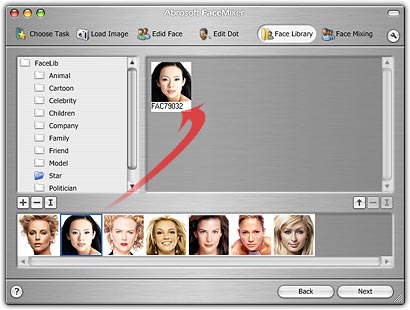
3. You can directly drag a face from the Face Library to
Face List Panel or click the Add Face to Project button ( )
to append it to the current project.
)
to append it to the current project.

4. To manage faces in Face Library, you can click the
Delete Face from Library button ()
to delete a face from Library. Note, the source image file of the face won't be
deleted. Click the Rename Face
button ()
to rename the selected face in Face Library.
Home |
Overview |
Screenshots |
Samples
|
Download
|
Purchase |
FAQ |
Tutorials |
Forum
Copyright © 2005-2009 Abrosoft. All rights reserved.
Contact Us |
Privacy Policy