 )
you may choose from. The default task is Create New Project. Just
click the Next button or the Load Image icon to go to Step 2 and
start creating a new project.
)
you may choose from. The default task is Create New Project. Just
click the Next button or the Load Image icon to go to Step 2 and
start creating a new project.We begin by choosing a task you want to do.
1. There are five tasks ()
you may choose from. The default task is Create New Project. Just
click the Next button or the Load Image icon to go to Step 2 and
start creating a new project.

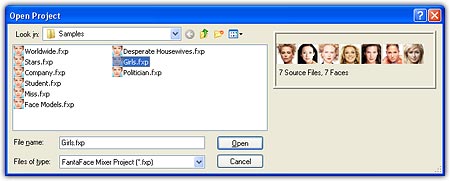
2. If choose Open Existing Project, a standard open file window will appear. Choose a project file, and the face thumbnails of the project will display on the preview panel to help you make your selection.
3. If choose Browse Projects, a standard browse for
folder window will appear. Choose a folder where you store project files. By
default, it is C:\Program Files\Abrosoft\FantaFace\Mixer3\Project. Then, all
project files in the folder you chose will be listed in the Project List Panel ( ) on the right of the tab.
Each project is listed with its file name as well as the face thumbnails to help you
easily find the project you want to open.
) on the right of the tab.
Each project is listed with its file name as well as the face thumbnails to help you
easily find the project you want to open.

4. If choose Open Recent Project, up to 10 recent projects you used will be listed to help you find the last one you may need to continue edit.
5. If choose Open Sample Project, all the sample projects stored in the sample folder (by default, it is C:\Program Files\Abrosoft\FantaFace\Mixer3\Samples) will be listed.

Home |
Overview |
Screenshots |
Samples
|
Download
|
Purchase |
FAQ |
Tutorials |
Forum
Copyright © 2005-2009 Abrosoft. All rights reserved.
Contact Us |
Privacy Policy